3.3.3 Error suggestion
In 3.3.1 Error identification, we learned how to alert users to an error in their form. This success criterion goes a step further. It is an AA level criterion and it requires more than merely telling the user they have made a mistake. If it is possible to offer suggestions to fix the error, you should do that. The success criterion states:
If an input error is automatically detected and suggestions for correction are known, then the suggestions are provided to the user, unless it would jeopardize the security or purpose of the content.
What are suggestions?
Errors can be caused in various different ways, such as:
- Missing a mandatory form field
- Using an incorrect format
- Inputting a value that is outside the accepted range.
An error suggestion would make it easier for the user to understand why the error happened and how to fix it. This means thinking carefully about what the error is and offering text suggestions on how to fill in that field correctly.
Code examples
First, I should explain that this is not the whole code for the form and validation. I'm just pulling out parts to explain this success criterion. At some point, I may share a full form and full validation code, as I would have found that helpful.
Firstly, think about where you want your error summary to appear. I think the best place is at the top of the page, so that all the form fields then come after it. Here is my code for the error summary:
<div id="errorSummary" class="error" role="alert" tabindex="-1" style="display: none;">
<p id="result"></p>
<p><a id="firstNameError" class="error" href="#fname"></a></p>
<p><a id="lastNameError" class="error" href="#lname"></a></p>
<p><a id="dayError" class="error" href="#day"></a></p>
<p><a id="monthError" class="error" href="#month"></a></p>
<p><a id="yearError" class="error" href="#year"></a></p>
<p><a id="address1Error" class="error" href="#addressLine1"></a></p>
<p><a id="addressTownError" class="error" href="#addressTown"></a></p>
<p><a id="addressPostcodeError" class="error" href="#addressPostcode"></a></p>
<p><a id="maritalStatusError" class="error" href="#maritalStatus"></a></p>
<p><a id="childrenError" class="error" href="#children"></a></p>
</div>
Initially, the whole <div> has style="display: none;" because The error summary should not display until an error has occurred. Later, we can use JavaScript to make it appear. It also has tabindex="0" so that it is not in the initial focus order for keyboard navigation.
Each line of code within that div is for the error suggestion text, though that text isn't there yet. It will also be inserted, as needed, using JavaScript. Each link in that code has an id attribute, which will be used by the JavaScript, and the href attribute points to the id of the relevant form field, where the user can correct their mistake.
Next, we will look at three different types of error suggestion - the ones I mentioned earlier.
Field not filled in
If the user has simply missed a form field and not filled it in, the most appropriate error text should tell them they need to fill it in. The following screenshot shows an example of this:
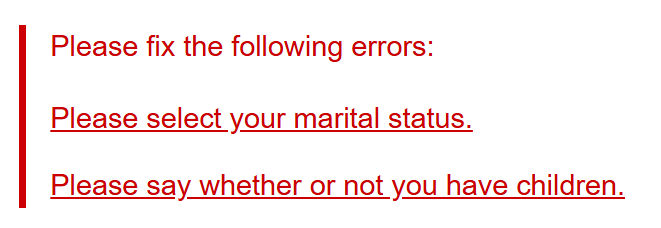
I've selected two fields where this may apply. Let's have a look at the JaveScript for those bits.
//Function to Validate Marital status

function validateMaritalStatus(){
	if (maritalStatus.value === "") {
	showError(maritalStatusError, "Please select your marital status.");
	return false;
	}

	clearError(maritalStatusError);
	maritalStatusError.parentElement.style.display = "none";
	return true;
}
The marital status question was a <select> element. The JavaScript checks the answer and if the answer is empty, it adds in the text, Please select your marital status.
to the error summary <p> element.
//Function to Validate Children

function validateChildren(){
	if(!childrenYes.checked && !childrenNo.checked) {
	showError(childrenError, "Please say whether or not you have children.");
	document.getElementById("children").classList.add("error");
	return false;
	}

	clearError(childrenError);
	childrenError.parentElement.style.display = "none";
	document.getElementById("children").classList.remove("error");
	return true;
}
The children question used radio buttons, with possible answers of Yes or No. So this code checks whether one of them has been selected and, if not, puts the text, Please say whether or not you have children
into the error summary.
Wrong format
This is a highly simplified example of an input that must follow an exact format. I realised after creating it, that there are other postcode formats in the UK that I've not covered here... but it's just an example, so let's not worry.
The important thing here is that we make suggestions to help the user to fix the error. In this case, I've given an example format, so they can check against that.
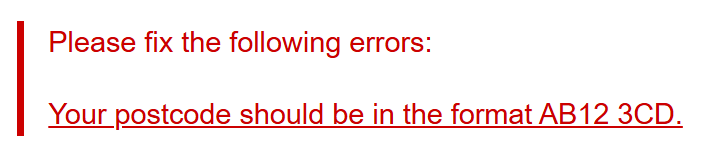
//Function to Validate Postcode

function validateAddressPostcode(){
	const address4 = addressPostcode.value.trim();
	if (!/^[A-Z]{1,2}[0-9]{1,2} [0-9][A-Z]{2}$/.test(address4)) {
	showError(addressPostcodeError, "Your postcode should be in the format AB12 3CD.");
	document.getElementById("address").classList.add("error");
	return false;
	}

	clearError(addressPostcodeError);
	addressPostcodeError.parentElement.style.display = "none";
	document.getElementById("address").classList.remove("error");
	return true;
}
Out of range
Finally, here is an example of an error suggestion message for when the user gives an entry that is out of range. For this, I've chosen the Month field. Months can be tricky. Do you enter a number, a word or an abbreviation? You could also accidentally enter the day and month the wrong way round, if you use US date format. So this error suggestion tells the user that the month must be a number and what the range is.
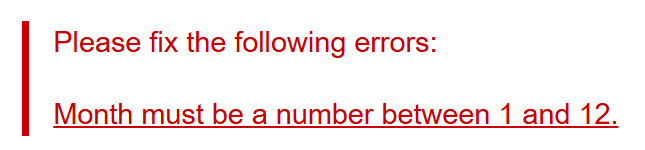
//Function to Validate Month of birth

function validateMonth() {
    const value = Number(monthDob.value.trim());

    if (!Number.isInteger(value) || value < 1 || value > 12) {
        showError(monthError, "Month must be a number between 1 and 12.");
        document.getElementById("dob").classList.add("error");
        return false;
    }

    clearError(monthError);
    monthError.parentElement.style.display = "none";
    document.getElementById("dob").classList.remove("error");
    return true;
}
Summary
Although the code to validate and create the error messages might not be simple, the point of this success criterion is really quite simple. Don't just tell the user they've made a mistake. Instead, if you can suggest how to fix the error, do that.